

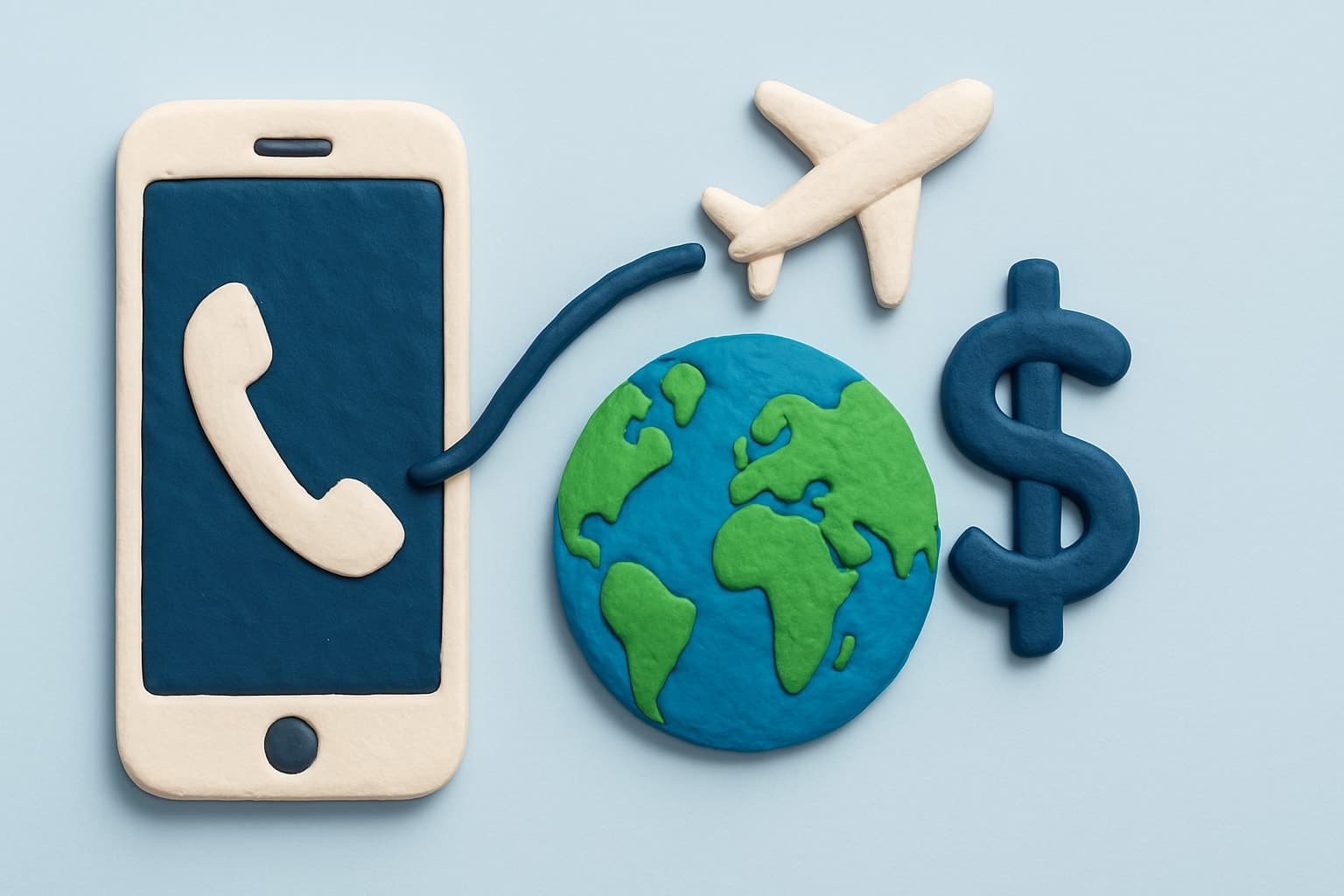
In 2025, staying in touch with friends, family, and colleagues around the world is more important than ever, but figuring out iphone international calling can still be tricky and expensive. Many of us worry about hidden fees, confusing settings, or dropped calls when reaching out across borders.
This guide is here to simplify the process. We’ll walk you through the latest iPhone calling features, show you step-by-step setup tips, highlight the best apps and services, and help you avoid unnecessary costs. Whether you’re traveling, working abroad, or just connecting with loved ones, you’ll find practical solutions to make every international call smooth and stress-free.
Understanding International Calling on iPhone: Key Concepts for 2025
Staying in touch with friends, family, or colleagues abroad is easier than ever, but iphone international calling still brings some confusion. With constant updates to iOS, new features, and shifting carrier plans, it helps to understand the essentials. Let’s break down what’s new, how it all works, and what challenges to look out for in 2025.

The Evolution of iPhone Calling Features
Apple keeps raising the bar for iphone international calling. With iOS 18 and 19, users experience smoother connections thanks to built-in Wi-Fi calling and seamless VoIP integration. These updates allow calls over Wi-Fi or data, making it easier to avoid expensive roaming fees.
The introduction of eSIM technology means you can now add multiple carriers to your device, which is perfect for frequent travelers. The Contacts app helps too—now, when you save a number, iOS automatically formats it for over 200 countries, so you’re less likely to misdial.
For example, if you add a friend in Brazil, iOS will insert the correct country code and formatting. These advancements simplify iphone international calling and help you stay connected wherever you go.
How International Calling Works: The Basics
To make the most of iphone international calling, you need to understand country codes, exit codes, and number formatting. Each international call starts with an exit code, followed by the country code, then the local number. For instance, calling the UK from the US means dialing +44 after the exit code.
There are three main ways to place international calls:
- Direct dialing through your carrier
- Using carrier-provided services
- Relying on internet-based calls with apps
Local and international carriers can affect your rates and call quality. Want a step-by-step walkthrough on formatting numbers and dialing abroad? Check out this iPhone International Calling Guide for practical tips and screenshots.
Common Challenges and Costs
While iphone international calling is more accessible, there are still hurdles. Roaming charges can add up quickly if you’re not careful. International call rates from major US carriers like AT&T or Verizon have increased—competitor data shows an average 8% rise in 2024.
Wi-Fi and VoIP calls use your data plan, so it’s important to monitor your usage, especially when traveling. Some carriers sneak in hidden surcharges, and not all plans are transparent about fees.
Here’s a quick comparison:
| Call Method | Typical Cost | Data Usage | Hidden Fees? |
|---|---|---|---|
| Carrier Dial | High | None | Sometimes |
| Wi-Fi/VoIP | Low | ~100MB/hr | Rare |
Being aware of these challenges helps you make smarter choices and avoid surprise bills when using iphone international calling. For general guidance, see our how to make international calls guide.
Setting Up Your iPhone for International Calls: Step-by-Step
Getting started with iphone international calling can feel overwhelming, but a step-by-step approach makes it simple. Whether you are preparing for a trip or keeping in touch with loved ones abroad, setting up your iPhone correctly ensures smooth, affordable connections.

Step 1: Check Carrier Compatibility and International Plans
Before making any international calls, confirm your carrier supports iphone international calling. Visit your carrier’s website or use their app to check if international calling is enabled for your line.
Compare international plan options from major carriers like AT&T, T-Mobile, and Verizon. Some offer add-on packages with discounted per-minute rates, while others use pay-as-you-go pricing. Add-on plans can be cost-effective for frequent travelers, but pay-as-you-go may suit occasional users better.
Be aware of plan restrictions and always review the fine print for fees. If you use a prepaid SIM, double-check that iphone international calling is included.
Step 2: Enable International Calling and Roaming
Next, activate international calling and roaming in your iPhone settings. Open Settings, tap Mobile Service, then select your number. Here, toggle on Roaming and ensure international calls are not restricted.
For users on iOS 18, the process is even more streamlined. Navigate to Settings > Cellular > Cellular Data Options. Enable Data Roaming only if you want to use cellular data abroad for iphone international calling. Remember, roaming can lead to extra charges, so consider disabling it when you rely on Wi-Fi.
Take screenshots of your settings for easy reference when traveling. If you encounter issues, restart your device to apply changes.
Step 3: Add and Format International Contacts
Properly formatting international contacts is crucial for successful iphone international calling. Begin each number with a plus sign (+), followed by the country code and the local number.
The iOS Contacts app now auto-formats numbers for over 200 countries, making it easier to save and validate contacts. When traveling, sync your contacts to iCloud or another cloud service to access them anywhere.
For a step-by-step guide on correct number formatting and dialing, see How to Call Internationally. Double-check your contacts before you travel to avoid missed calls or connection issues.
Step 4: Use Wi-Fi Calling and VoIP Apps
To save on fees, enable Wi-Fi Calling in Settings > Phone > Wi-Fi Calling. This feature lets you make iphone international calling over Wi-Fi, bypassing carrier rates. Wi-Fi Calling is especially useful in hotels, airports, or anywhere cellular service is weak.
Explore VoIP apps like WhatsApp, Skype, or Viber for additional savings. These apps use data instead of minutes and often offer free or low-cost calls to international numbers. Keep in mind that a one-hour Wi-Fi call typically uses around 100MB of data.
Test both your Wi-Fi and app connections at home before you leave, ensuring reliable iphone international calling wherever you go.
Step 5: Test Your Setup Before Traveling
Before heading abroad, make a test call to an international number. Confirm that your iphone international calling setup works, and check the call quality. Review your carrier’s billing or app usage to verify the correct charges.
If you face issues, revisit your settings or contact your carrier for support. Troubleshoot common problems like incorrect number formatting or weak Wi-Fi in advance, so you can travel with confidence.
Top Methods for Making International Calls on iPhone in 2025
Staying connected with friends, family, or business partners across borders is easier than ever with the right approach to iphone international calling. Let’s explore the best ways to make international calls using your iPhone in 2025, so you can find a method that fits your needs, budget, and lifestyle.

Using Native iPhone Features
Apple continues to refine iphone international calling features with every iOS update. In 2025, you can make international calls directly from the Phone app by entering a plus sign, country code, and number. Thanks to built-in dialing assistance, iOS now auto-formats numbers for hundreds of countries, making it simple to reach anyone abroad.
FaceTime Audio is another great option for iphone international calling, especially if both parties have Apple devices. This service delivers crystal-clear sound and is free over Wi-Fi or data. However, FaceTime Audio requires both caller and recipient to use Apple products, which may limit its reach.
Many carriers now support Wi-Fi calling, allowing you to use your regular number for international calls when connected to Wi-Fi. This can significantly reduce costs and improve call quality, particularly in areas with weak cellular coverage. Always check your carrier’s policy to avoid unexpected charges.
Third-Party Calling Apps and Services
For those seeking more flexibility or lower rates, third-party apps are a popular choice for iphone international calling. Apps like WhatsApp, Skype, Viber, and Google Voice let you call internationally using Wi-Fi or cellular data. These apps often provide free calls between users, while offering low rates for calling mobile or landline numbers worldwide.
- WhatsApp: Free app-to-app calls, widely used globally.
- Skype: Allows calls to phones and other Skype users, supports group calls.
- Viber: Known for secure calls and messaging.
- Google Voice: Offers a U.S. number with affordable international rates.
Each app has its own pros and cons, such as recipient requirements, call quality, and additional features. If you want to compare your options, check out Best International Calling Apps for iPhone for a detailed review.
Pay-As-You-Go Services and Web Apps
Pay-as-you-go services and web apps are gaining traction for iphone international calling, especially among travelers and expats. These services let you purchase credits or pay per call, avoiding contracts or monthly fees. You can often place calls directly from your browser or through a lightweight app.
Benefits of pay-as-you-go include transparent pricing, no surprise bills, and the flexibility to call any number, even landlines. Many web-based platforms are designed for security and privacy, using encryption to keep your conversations safe.
When choosing a pay-as-you-go service for iphone international calling, compare rates for your most-called countries, check for hidden fees, and ensure the service is compatible with your iPhone. This approach is ideal if you want control and clarity over your calling costs.
Avoiding Excess Fees and Maximizing Call Quality
Staying connected globally shouldn’t mean paying sky-high bills or suffering poor audio. When it comes to iphone international calling, many of us have faced surprise fees or dropped calls. Let’s walk through practical strategies to help you avoid those excess charges and enjoy crystal-clear conversations wherever you are.

Understanding Carrier Fees and Roaming Charges
Carrier fees can be sneaky, especially with iphone international calling. Many users are shocked by roaming charges or unexpected surcharges after a trip. Major carriers like AT&T and T-Mobile offer international plans, but rates and hidden fees can be confusing. For a detailed breakdown of how these charges work and how different plans stack up, check out Vodafone International Calls Explained. Comparing plans before you travel or call abroad can save you a small fortune.
| Carrier | Typical Rate/min | Plan Name | Hidden Fees? |
|---|---|---|---|
| AT&T | $1.00+ | World Connect | Sometimes |
| T-Mobile | $0.25 | Magenta | Rare |
| Vodafone | $0.20-$1.00 | Global Roaming | Varies |
Always read the fine print before making that first call.
Leveraging Wi-Fi and Data-Based Calling
One of the best ways to avoid fees with iphone international calling is to use Wi-Fi or data-based options. Wi-Fi calling allows your iPhone to route calls over the internet, bypassing traditional carrier networks and their fees. You can also use eSIMs or local SIM cards to access local rates when traveling. Remember, one hour of Wi-Fi calling typically uses about 100MB of data, so monitor your usage if you’re on a limited plan.
Data-saving tips:
- Connect to secure, private Wi-Fi whenever possible.
- Disable background app refresh to conserve data.
- Use call compression features in supported apps.
Choosing the Right App or Service for Your Needs
Selecting the best tool for iphone international calling depends on who you’re calling and where they are. FaceTime Audio is great for iPhone-to-iPhone calls, but it won’t reach landlines. WhatsApp and Viber work well for internet-based calls, as long as both parties have the app. For calling landlines or mobiles abroad, VoIP apps or pay-as-you-go services offer flexibility and savings.
Consider:
- Does the recipient need the same app?
- Are you calling a landline or a mobile?
- Do you need call recording or translation features?
Match your method to your needs for a hassle-free experience. For iPhone-to-iPhone options, see our iPhone to iPhone international calls guide.
Tips for Optimal Call Quality
Quality matters as much as cost with iphone international calling. Strong Wi-Fi signals make a big difference, as does using headphones to reduce background noise. Avoid public hotspots, which can be slow or insecure. If you experience dropped calls, try moving closer to your router or switching to mobile data. According to surveys, 92% of users report better call quality on Wi-Fi compared to cellular.
Best practices:
- Use a private, high-speed Wi-Fi network.
- Restart your iPhone before important calls.
- Close unused apps during calls for better performance.
Managing Costs with Pay-As-You-Go and Credit Tracking
Keeping track of your spending is essential for affordable iphone international calling. Many pay-as-you-go apps provide real-time credit tracking and alerts when you’re running low. On iPhone, you can use Screen Time to monitor call app usage and set limits for added control. Setting up usage alerts helps you avoid unexpected charges, and reviewing your call history lets you spot trends or unnecessary expenses.
Staying proactive makes international communication worry-free and budget-friendly.
Troubleshooting International Calling Issues on iPhone
Staying connected with iphone international calling can sometimes be tricky, but most issues have quick solutions. If your call won’t connect or audio is poor, don’t worry—we’ll walk through the most common problems, offer step-by-step troubleshooting, and share real-life fixes that help you call abroad with confidence.
Common Problems and Quick Fixes
Sometimes, iphone international calling fails due to simple issues like incorrect number formatting or carrier restrictions. Double-check that you’ve entered the country code correctly. For a handy reference, see the Country Codes for International Calls page.
Other common fixes include:
- Ensuring your device is updated to the latest iOS version.
- Verifying your carrier plan includes international calling.
- Restarting your iPhone or toggling Airplane Mode.
If calls are blocked or restricted, check with your carrier for any limitations in the destination country. Remember, even a missing “+” or wrong code can cause calls to fail.
Advanced Troubleshooting Steps
If basic fixes don’t work, try these advanced steps to resolve iphone international calling issues:
- Reset your network settings: Go to
Settings > General > Transfer or Reset iPhone > Reset Network Settings. - Update your iOS and any calling apps to the latest versions.
- Remove and reinsert your SIM or refresh your eSIM profile.
- Contact your carrier or app support for region-specific restrictions.
New iOS versions often introduce changes that impact international calls. To stay updated, check out the iOS 18 Phone App Features guide for the latest improvements and troubleshooting options.
Real-World Examples and Solutions
Let’s look at some real-life iphone international calling fixes. If a call to India fails, it’s often due to the wrong country code. Double-check the format: +91 followed by the number.
FaceTime Audio sometimes doesn’t work in restricted countries. Use a VPN or switch to another calling app in these cases.
One user discovered their calls were blocked by the carrier, but switching to a pay-as-you-go app not only fixed the problem but saved them $50 each month. Quick troubleshooting can turn frustration into savings and seamless connections.
Essential Tips and Best Practices for International iPhone Calling
Staying connected across borders is easier than ever, but a few smart steps can help you make the most of iphone international calling. Whether you’re a frequent traveler, an expat, or just reaching out to loved ones overseas, these practical tips will ensure your experience is smooth, affordable, and secure.
Preparing Before You Travel or Call Abroad
Before making any iphone international calling, it’s wise to check off a few essentials. Start with your carrier plan—does it cover international calls or data? Next, review your phone’s settings, especially roaming and Wi-Fi calling options.
Here’s a quick travel checklist for iphone international calling:
| Task | Completed? |
|---|---|
| Confirm carrier’s global plan | ☐ |
| Enable international roaming | ☐ |
| Update iOS and apps | ☐ |
| Back up contacts/data | ☐ |
| Download key call apps | ☐ |
Formatting contacts with country codes is also crucial. For example:
+44 20 1234 5678  # UK number
+91 98765 43210   # India number
By preparing ahead, you eliminate last-minute hassles and keep your iphone international calling worry-free.
Security and Privacy Considerations
Your privacy matters, especially when making iphone international calling. Always use encrypted calling apps if you’re discussing sensitive topics. ZippCall and similar services offer end-to-end encryption, making sure your conversations stay private.
Avoid public Wi-Fi whenever possible. These networks can expose your call data to prying eyes. Instead, use a secure, password-protected network or your mobile data plan for important calls.
- Use encrypted apps (like ZippCall)
- Avoid public Wi-Fi for sensitive calls
- Regularly update your iOS for the latest security patches
Staying vigilant with these habits keeps your iphone international calling secure and confidential.
Managing Contacts and Call History
Efficient contact management streamlines iphone international calling. Organize international numbers in your Contacts app, labeling countries and frequently called people for quick access. iOS lets you flag favorites for even faster dialing.
Consider syncing your contacts to the cloud before you travel. This ensures you never lose important numbers, even if your phone is lost or replaced.
For privacy, periodically delete sensitive call logs. A tidy call history not only protects you but also makes iphone international calling less cluttered and more manageable.
Staying Up-to-Date with iPhone Features and International Calling Trends
Apple frequently updates iOS with new features that impact iphone international calling. Stay informed about the latest releases, like dual SIM controls and expanded language support introduced in iOS 18 India-Specific Features.
Keeping an eye on carrier and app updates helps you spot changes in rates or new calling tools. Did you know there are now over 1.5 billion iPhone users worldwide? (iPhone User Statistics 2025). This global reach makes iphone international calling more relevant than ever.
Rumors suggest iOS 19 will introduce AI-powered call quality improvements, so staying updated means you’ll always enjoy the best possible calling experience.
Expert Recommendations for 2025
For the best iphone international calling results, combine these strategies:
- Use carrier plans for emergencies, but rely on Wi-Fi or VoIP apps for daily calls.
- Choose pay-as-you-go services for flexibility and savings.
- Always test your setup before you leave.
- Monitor your call app usage with iOS Screen Time.
- Follow a checklist to avoid missing crucial steps.
By following these best practices, you’ll enjoy seamless, secure, and budget-friendly iphone international calling wherever life takes you.
We’ve covered everything you need to know to make international calls from your iPhone in 2025—from understanding the latest iOS features to finding the most affordable ways to stay in touch. If you’re ready to put this guide into action and start connecting with friends and family worldwide, why not try a service that’s simple, secure, and easy on your wallet? With ZippCall, you can call anyone, anywhere, without subscriptions or hidden fees. Let’s make global communication hassle free together.

Entrepreneur and founder of ZippCall. After years living abroad, Josh built ZippCall to make international calling simple, affordable, and reliable.
Ready to Try ZippCall?
Make affordable international calls on web, iPhone, and Android devices. Crystal-clear quality with competitive rates.
1 minute setup. No subscription required.
You might also like


The Essential Guide to 2 Degrees International Call Rates 2025
Discover the 2 degrees international call rates for 2025 with our friendly guide Compare providers find savings tips and stay connected with ease and confidence
Read article
Kogan Mobile International Calls: The Essential Guide 2025
Discover everything about Kogan Mobile international calls in 2025 with our friendly guide covering rates, plans, setup tips, and savings so we can stay conn…
Read article
Ultra Mobile International Calling Guide: Tips for 2025
Master ultra mobile international calling in 2025 with expert tips, plan comparisons, and money-saving strategies. Stay connected worldwide with confidence.
Read article